
Before You Start
Webhook management is available to administrators in Trustpair Application. For more information about administrator access, see User Account Management on Trustpair.
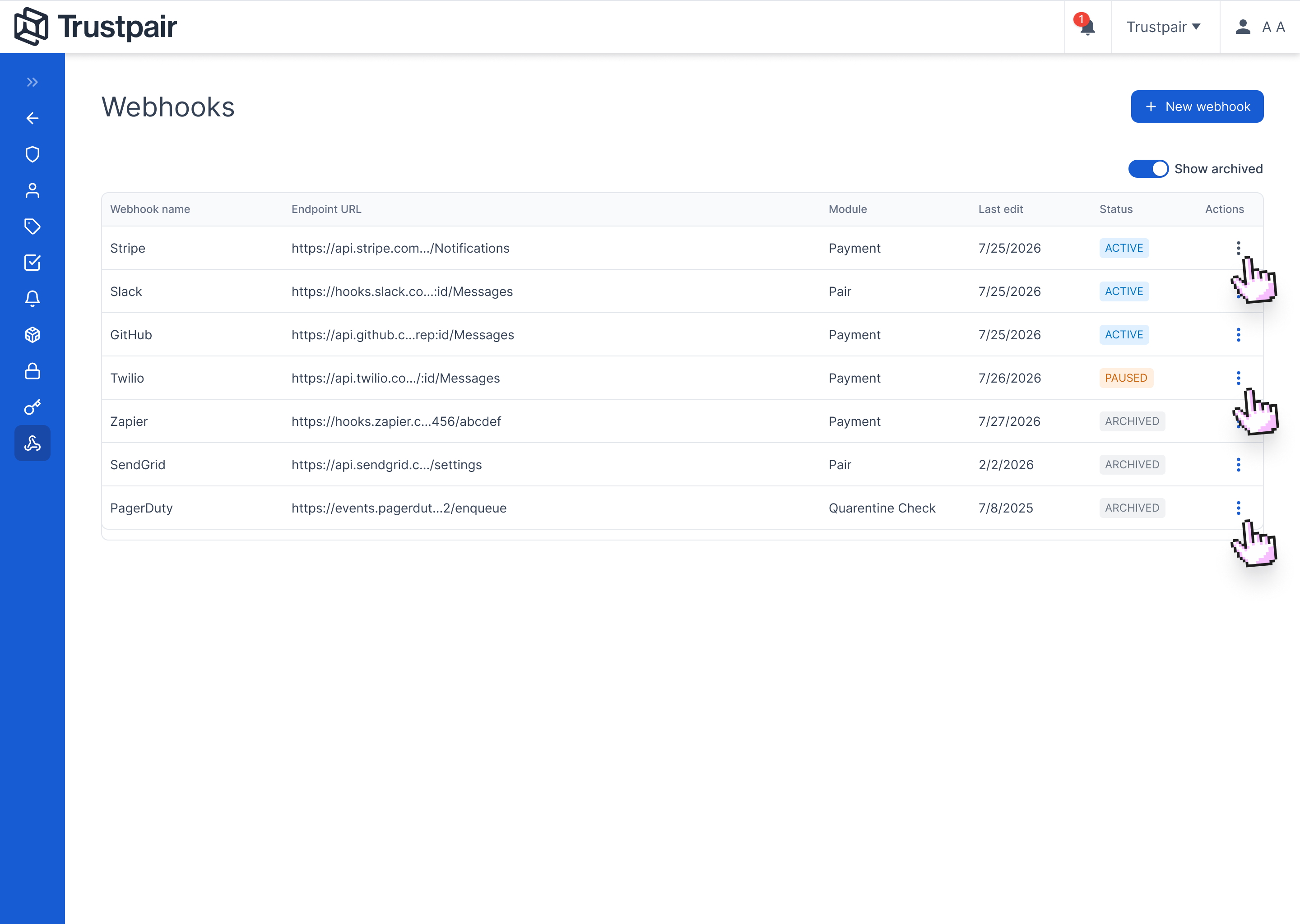
Before creating a webhook, prepare:
- A name for the webhook
- The endpoint URL of the receiving system
- The module whose events the webhook should receive
Each webhook is associated with one module only.
How Webhook States Work
A webhook can be Inactive, Active, or Archived. Its state determines whether it can deliver events and which actions are available.
State
| State | Delivery behavior | Available actions |
|---|---|---|
| Inactive | No live event delivery. Test events can be sent. | Edit details, send a test event, regenerate the signing secret, activate, or archive |
| Active | Live events are sent to the endpoint. | Deactivate |
| Archived | No event delivery. | Read-only |
Every new webhook starts as Inactive.
Deactivation is reversible: the webhook, its configuration, and its history are preserved. Archiving is permanent and cannot be undone.
Create a Webhook
Click your initials in the top-right corner of the Trustpair application, then select Administration.
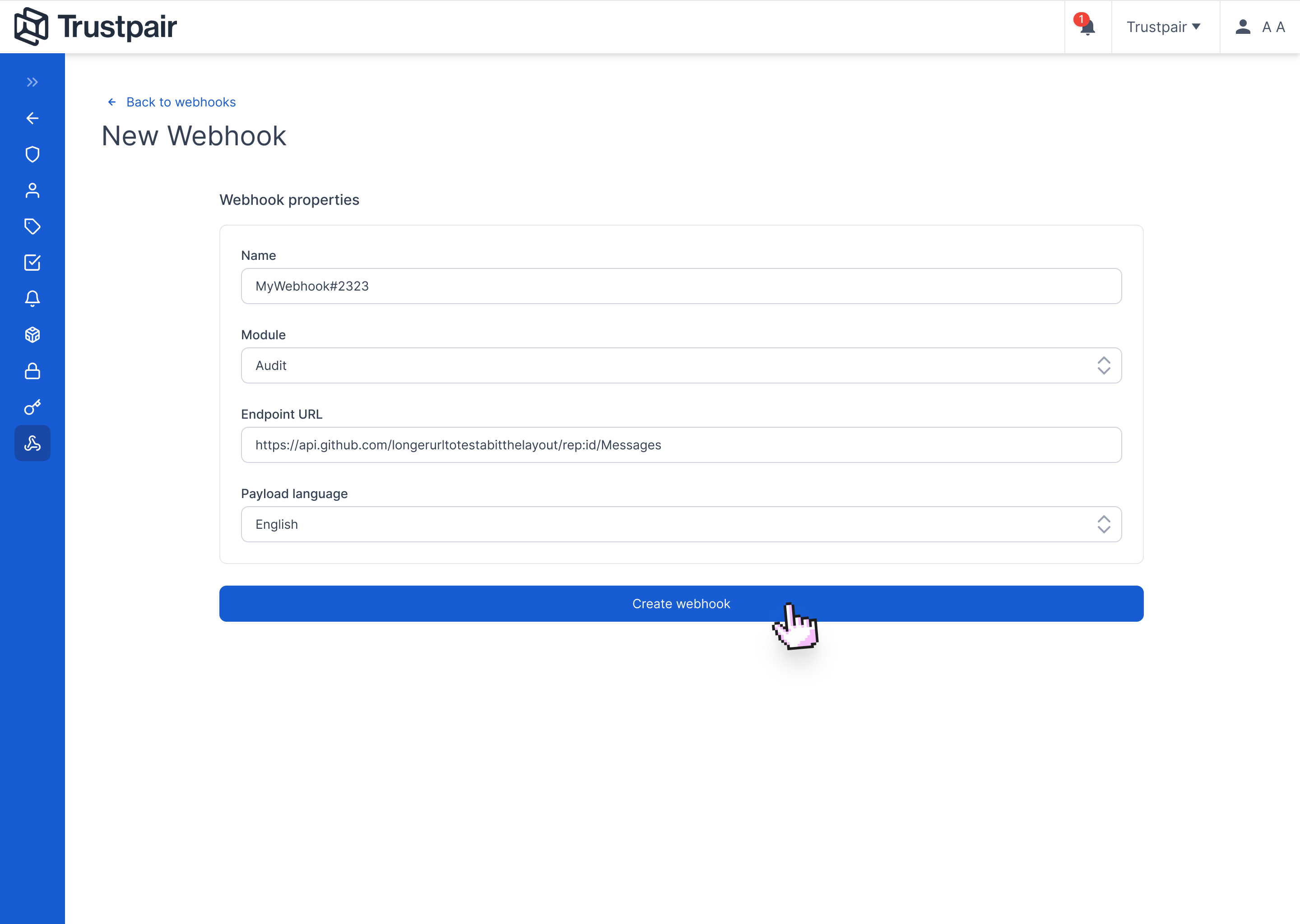
Open the Webhooks menu in the left-hand navigation bar, then click + New webhook.
- Enter a name for the webhook.
- Select the module that will trigger the webhook: Check / Audit / Payment / Case
- Enter the endpoint URL where Trustpair should send the webhook events. Make sure you own and trust this endpoint, as webhook payloads may contain sensitive Trustpair data. You are responsible for ensuring that the endpoints you configure are secure and under your control.
- Select the payload language: English, French, or Spanish.
- Complete the webhook creation.
- Copy the signing secret immediately when it is displayed.
The webhook is created as Inactive by default and does not receive live events until it is activated./ca
The signing secret is used by the receiving system to verify that incoming requests were sent by Trustpair.
Important: The signing secret is displayed only once and cannot be retrieved later, including by Trustpair Support. If it is lost, you must generate a new secret.
Test the Endpoint
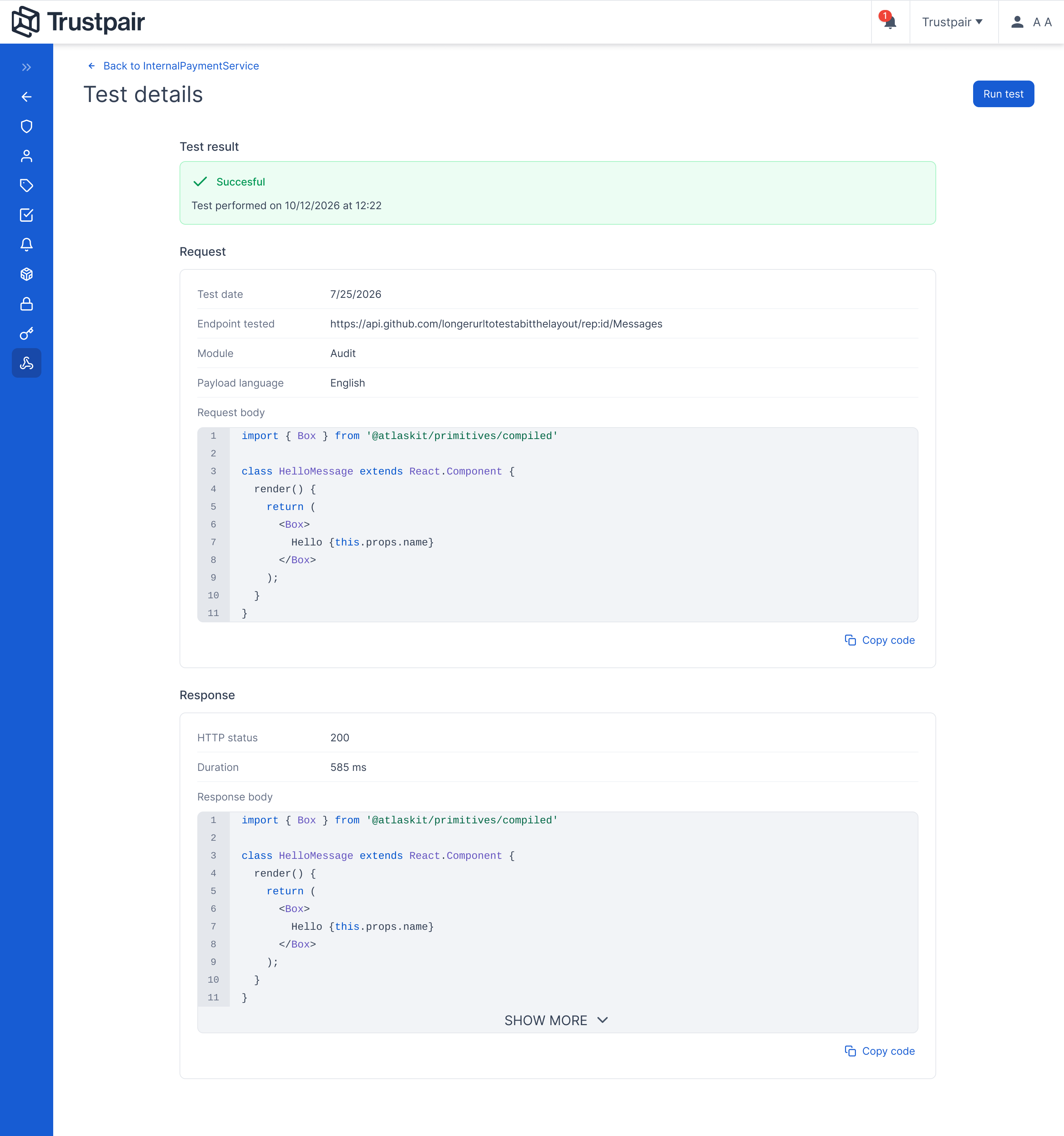
Test the endpoint before activating the webhook to make sure the receiving system is correctly configured.
- Make sure the webhook is Inactive.
- Send a test event.
- Review the result displayed in the platform.
Trustpair sends a sample payload to the configured endpoint using the same payload format and signing mechanism as a live delivery.
The test result is displayed immediately and indicates whether the endpoint:
- Responded successfully
- Returned an error
- Timed out
Test events are clearly identified as tests and do not create or modify real data in Trustpair.
Testing is available only while the webhook is Inactive.
Activate or Deactivate a Webhook
Activate a webhook
Activate the webhook when the endpoint is ready to receive live events. Its state changes to Active, and Trustpair starts delivering relevant events to the endpoint.
Deactivate a webhook
Deactivate the webhook to stop live event delivery. Its state returns to Inactive, while its configuration and history are preserved.
An inactive webhook can be edited, tested, or reactivated at any time.
Edit a Webhook
You must deactivate a webhook before editing it.
- If the webhook is Active, deactivate it.
- Update the name, endpoint URL, or module.
- Save the changes.
- Send a test event to verify the new configuration.
- Reactivate the webhook when the endpoint is ready to receive live events.
Editing and testing are unavailable while a webhook is Active to protect live traffic. Live event delivery stops while the webhook is inactive.
Regenerate the Signing Secret
Regenerate the signing secret if it has been lost or needs to be replaced.
- Deactivate the webhook if it is Active.
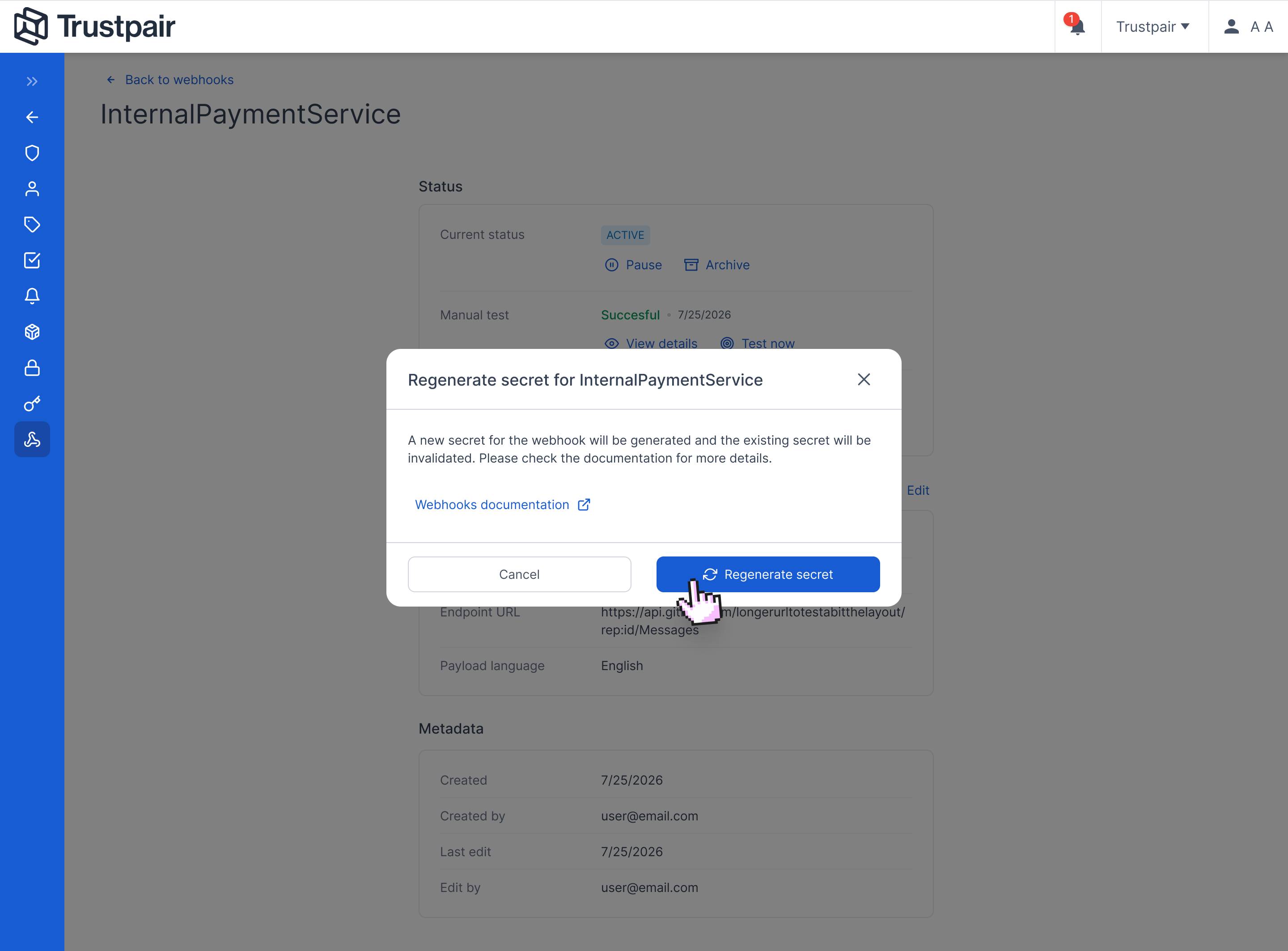
- Start the signing-secret regeneration process and review the warning.
- Confirm the regeneration.
- Copy the new signing secret immediately.
- Update the receiving system with the new secret.
- Reactivate the webhook once the receiving system has been updated.
Important: Regenerating the signing secret immediately invalidates the previous secret and cannot be undone. Requests will fail signature verification if the receiving system continues to use the old secret. The new secret is displayed only once.
Archive a Webhook
Archive a webhook when it is no longer needed.
Deactivate the webhook if it is Active.
Archive the Inactive webhook.
An archived webhook remains visible for record-keeping but is read-only and cannot receive events or be reactivated.
Important: Archiving cannot be undone. Use deactivation when you only need to pause delivery. If an archived webhook is needed again, create a new webhook.